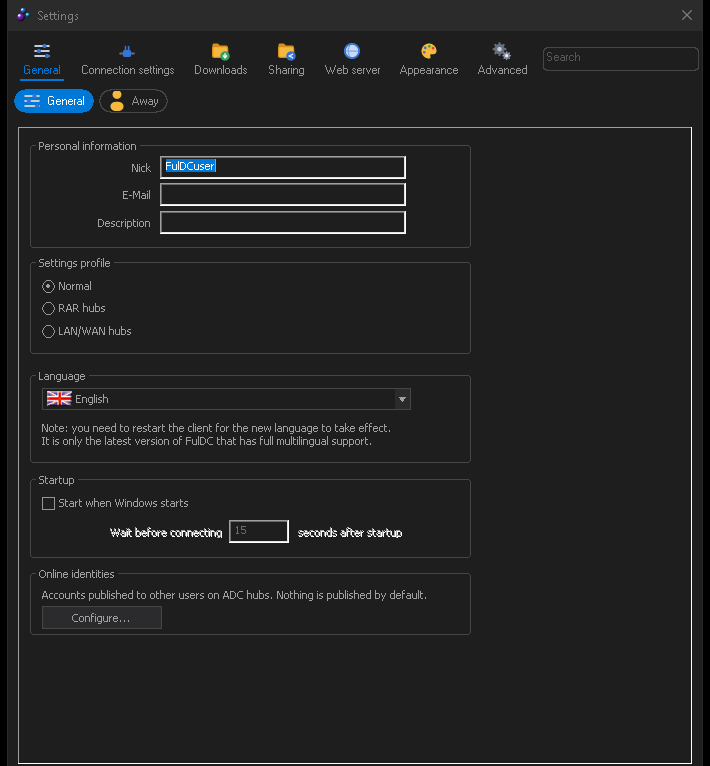
Seven categories, forty-odd pages. Here is what is in each of them.
Open settings with File → Settings or the toolbar button. FulDC++
does not use a settings tree: across the top is a row of category buttons, and
under it a row of chips for the pages in the selected category.
Can't find an option? There is a search box in the settings dialog
(Ctrl+F). Type part of a setting's name and it filters pages across every
category. This is usually faster than remembering which of the seven categories something is
filed under.
Categories along the top, pages underneath, and the search box on the right.
General
Page
What is there
General
Your nick, e-mail and description; the user profile (Normal / RAR hubs /
LAN); interface language; start with Windows and how long to wait before doing so; and
Online identities, where you can publish your accounts on other services for
other users to see.
Away
Away mode: the away message, whether to go away automatically after an idle
period, and whether to respond to private messages while away.
Connection settings
Page
What is there
Connection settings
Connectivity: automatic detection, active or passive mode, TCP/UDP/TLS
ports, UPnP, and your external address. IPv4 and IPv6 are configured on separate tabs. This is
the page that decides whether other people can connect to you — see
Troubleshooting.
Speed & slots
Your reported connection speed, upload slots, extra slots and
automatic slot allocation.
Limits & advanced
Upload and download speed limits, including a separate set
of limits for a chosen time of day, and per-user download limits.
Proxies
SOCKS5 and HTTP proxy settings for outgoing connections.
Downloads
Page
What is there
Downloads
Where finished downloads go, and the temporary folder used while a
file is incomplete.
Download locations
Rules sending particular file types to particular
folders.
File preview
External programs for previewing a partially downloaded file, and
the command lines to launch them with.
Priorities
How the queue is ordered, and the automatic priority system that
balances bundles by size and progress.
Download options
Segmented downloading: how many segments per file and the
minimum segment size.
Download scanning (FulDC++)
SFV and release-structure checks,
an external virus scanner with its command line, timeout and size cap, what to do on a hit,
the quarantine folder and excluded paths.
Sharing
Page
What is there
Sharing
Your shared folders and their virtual names, and your share
profiles.
Sharing options
The skiplist, whether hidden and system files are shared,
symbolic-link handling, automatic refresh intervals, and the maximum size of a file list
FulDC++ will download from another user.
Hashing
Hashing speed limits and buffer size, plus hash database
maintenance.
Web server
A category of its own: the HTTP and HTTPS ports, the address to bind each to, a start/stop button
with the live server state, and the list of administrator accounts. Accounts with
restricted permissions are created from the web UI itself, not here. See
Remote & web UI for what to do with it.
Appearance
Page
What is there
Appearance
The big checkbox list: timestamps, join and leave messages, bolding
of active tabs, tray behaviour, taskbar tabs, tabs on top, user list on the left, emoticons,
BBCode, magnet handling, inline GIFs, multiline input and send buttons, the Explorer visual
theme for lists, and date formats.
Dark theme (FulDC++)
Dark mode on or off, 52 presets and a
custom palette editor. Applies live, without restarting.
Colors & fonts
Chat and list fonts, and the colour of every kind of chat
message — your own, others', operators, private messages, favourites, timestamps.
… Progress bar colors
Colours and style of the transfer progress bars.
… List view colors
Row colours in lists, including the duplicate-file
highlighting used in search results.
Sounds
A sound per event: private message, download finished, hub connected, and
so on.
Toolbar
Which buttons appear, icon size, and icon packs, with a Reset to
default.
Windows
Which windows open automatically at startup, and whether new windows pop
up in front or open behind. Also the confirmation prompts — on exit, on removing a
download, on closing all tabs.
Tabs
Tab strip position, width, grouping and colours.
Popups
Toast notifications: which events raise one, how long it stays and where
it appears.
Highlight
Rules that colour or flag chat lines matching a word or pattern
— your nick, a release name, anything.
AirAppearance
The workspace background image, duplicate-file colouring, how many
lines of history a reopened chat shows, and the chat background image with
its placement and blend strength.
Advanced
Page
What is there
Advanced
Auto-follow hub redirects, whether FulDC++ handles
magnet: and hub links, ADL search behaviour, partial sharing, and the
watchdog.
GeoIP
The IP geolocation database that puts country flags in the user list:
whether to use it, where to fetch it and how often to refresh.
Auto-Recovery (FulDC++)
Automatic recovery after a crash or a
hang: the hang timeout, cooldown, maximum restarts per hour and the startup recovery prompt.
The crash reporting options are here too — whether to send reports,
whether to include the system log and how much of it, deep dumps, an upload size cap, and
buttons to create a report now or delete queued ones.
Backup (FulDC++)
Scheduled encrypted backups of your
configuration, how many to keep and where to put them.
Experts only
Buffer sizes, what double-clicking a user does, the action taken on
shutdown, share bloom-filter mode and log line counts. The name is a fair warning.
Logs
Which events are logged, the log folder, and the filename and format of each
log type.
User commands
Your own right-click menu entries for users and hubs, built from
chat command templates.
Encryption
Transfer encryption (TLS) mode and your client certificates.
Miscellaneous
Which media player the media toolbar drives and where it is
installed, password protection for the client and tray, and the saved histories for search and
other boxes.
Message filter
Rules that drop chat and private messages matching a pattern
— the spam filter.
Chat triggers (FulDC++)
Keyword and regex automation: match
something in chat, respond or act. Supports capture groups, away-only mode, per-hub scoping,
fire statistics and import/export.
Search
Automatic search intervals, result limits and SUDP encrypted search
results.
Search types
The file-type list used by every search window, and your own custom
types.
Plugins
Installed native plugins, with Get plugins… to
open the signed plugin catalogue.
Browser (FulDC++)
Settings for the built-in WebView2 browser
tab: home page, downloads and which URL schemes it will follow.
Rich text & attachments (FulDC++)
Rich text on or off,
composing in rich text by default, live preview, automatic fetching of inline pictures,
temporary chat shares, maximum message size, link display length, and the caps on inline media
size, count and resolution. The GIF search API key goes here, and so does the live list of
your active temporary shares.
Settings are saved when you press OK, and written to Documents\FulDC++. If you ever
need to start clean, close FulDC++ and rename that folder rather than deleting it — it
contains your favourites and your queue as well as your settings.